The MWOS app gives you a direct way back to football fixtures, live betting, Aviator and your tickets from an Android phone. You use your existing Moors account, so you do not need a second registration or a separate app balance.
It is worth considering if you regularly check bets on your phone and want an icon that takes you straight into MWOS. This guide explains where to get the official APK, what to do during installation and how the main betting and account features fit together. If you use an iPhone, the mobile website is your starting point.
| MWOS app detail | What you get |
|---|---|
| Android | Free APK through the official MWOS download page |
| iPhone | Mobile website; no MWOS iOS app currently offered |
| Account | Use the same login as betting.co.zw |
| Main features | Sports, live scores, betting tickets and casino access |
| Local payments | EcoCash and InnBucks through the cashier |
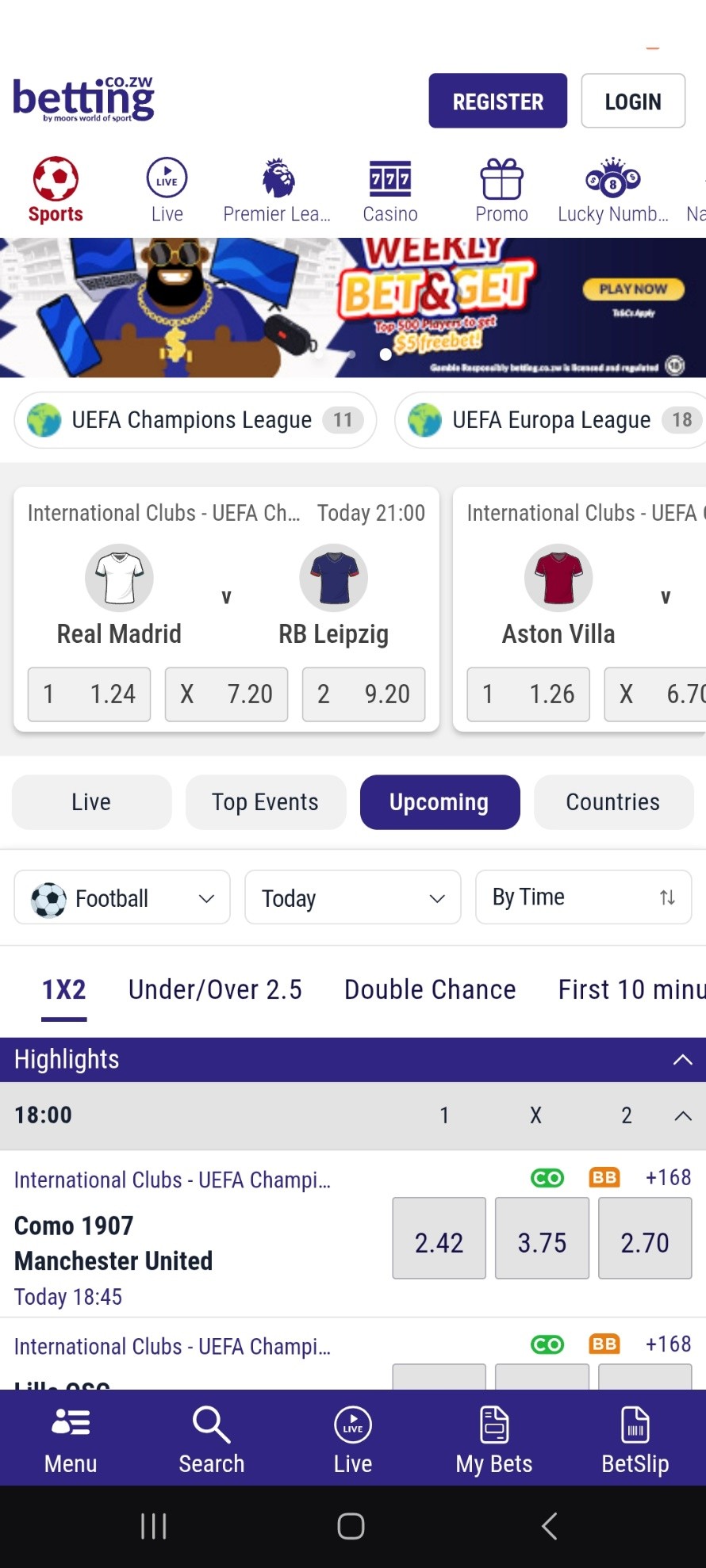
Download the MWOS App
1. Open the Official Download
Start at MWOS and follow its Android download link. The official MWOS app download page has a Download Now button and installation instructions. Use that route rather than an APK directory or a file shared in a messaging group.
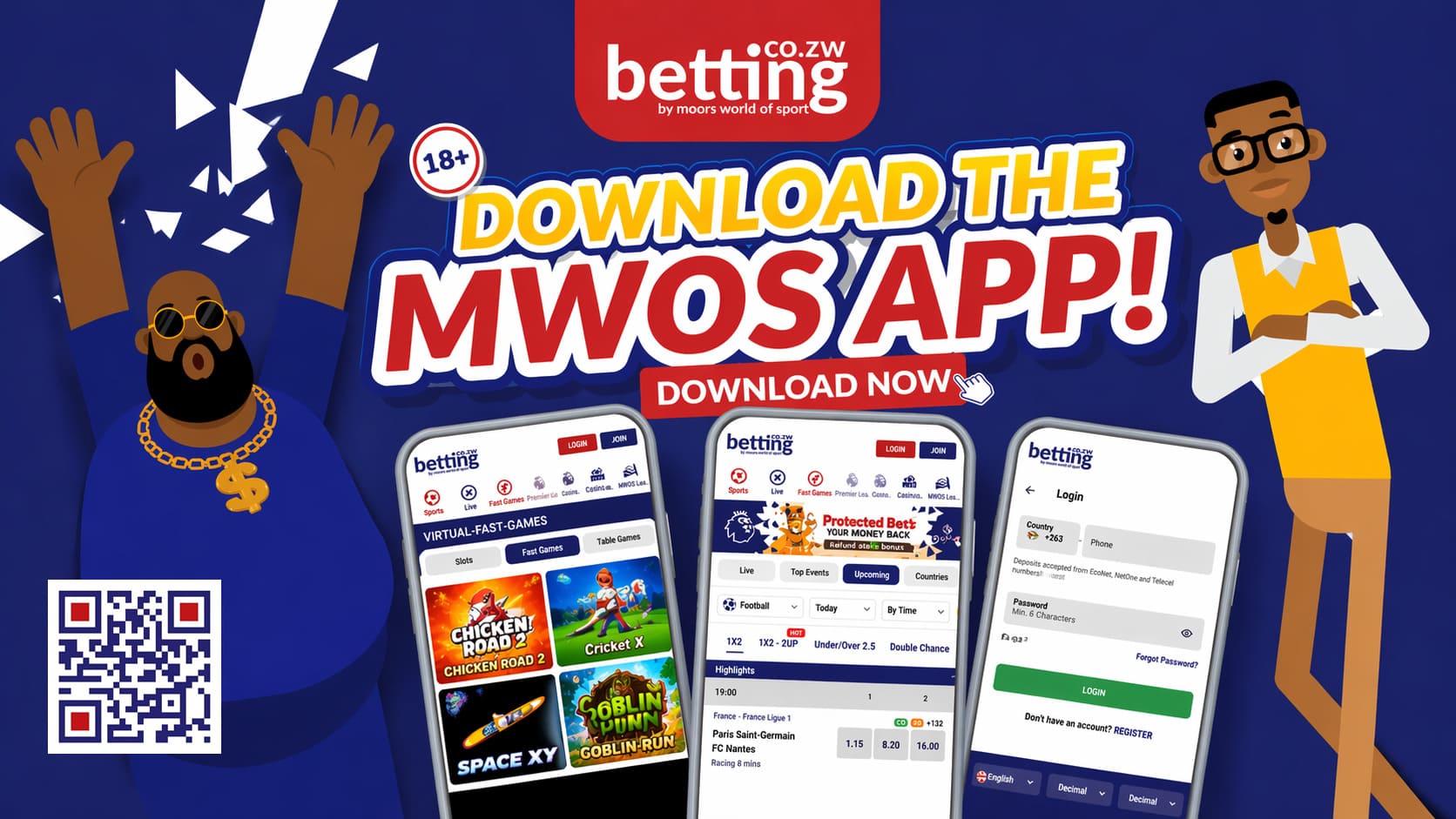
2. Save and Open the APK
Tap Download Now and let the file finish downloading. Open it from your browser’s downloads list or your phone’s Downloads folder. An APK is an Android installation package, so it will not install on an iPhone. Your phone also needs free space for the installed app and its data, beyond the download itself.
3. Follow Android’s Installation Prompt
Android may ask whether the browser that downloaded the file can install apps. If you choose to continue, grant permission for that source, return to the APK and tap Install. You can switch that permission off again afterwards. If Android gives a separate warning about the file, check the source and the warning before proceeding.
4. Use Your Existing Login
Open MWOS and sign in with the details you already use on the website. New players can follow our MWOS registration instructions. If you cannot get in, the MWOS login troubleshooting guide covers password and access problems. Reinstalling the app will not reset a forgotten password.
Finding Fixtures and Markets
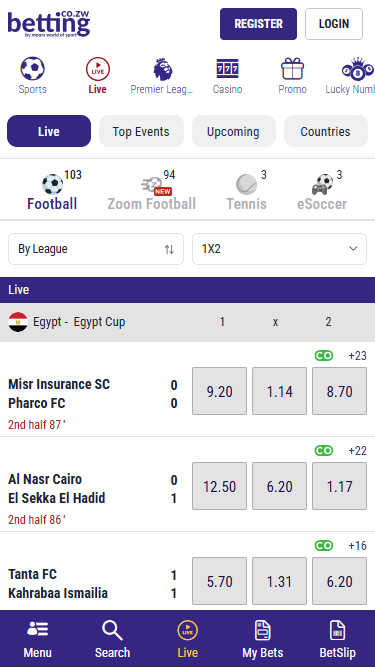
Sports opens the upcoming-event list. Use the team, event or league search when you know what you want, or take the Premier League shortcut to browse English football. This is more convenient than moving through several competition menus every time you return to the site.
The fixture list displays common markets such as match result, double chance and goals totals. Open the additional markets for the fixture to see the wider choice. For example, backing a team to win and backing that team with draw no bet are different selections, even though both show the same team name.
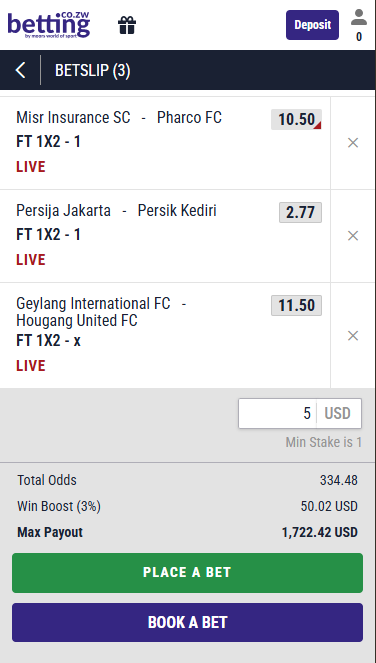
Check Your Betslip First
Selecting a price adds it to the betslip. Review the fixture, market and odds before entering your stake. Adding selections from separate matches builds an accumulator; every leg needs to win. Check any option that automatically accepts odds changes, because the price may move between selecting it and submitting the ticket.
My Bets is the place to return to an existing ticket. For an eligible unsettled bet, an available Cash Out offer can settle it early at the displayed amount. That option is not guaranteed on every ticket or throughout the match, so keep the original stake within your budget.
Live Betting on Your Phone
Open Live to separate matches already in progress from upcoming fixtures. Scores and available in-play markets help you follow the event, but odds can change or pause around important moments. Our MWOS live betting guide explains the event screens and ticket checks in more detail.
Casino and Aviator Access
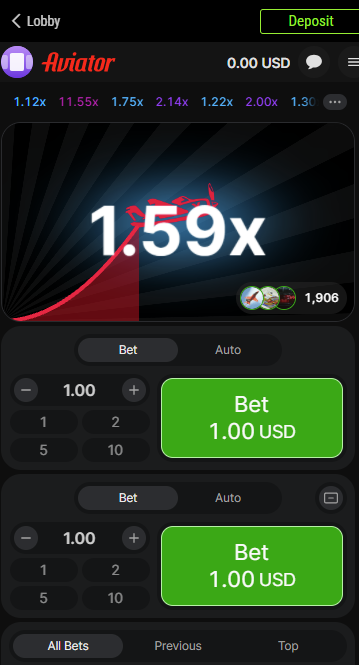
Casino opens the slot lobby, where Search Games saves you from browsing every thumbnail. Slots, Fast Games, Table Games, Instant Win and Scratch Card are separate sections. Live Casino has its own main-menu shortcut, as do Aviator and Navigator.
That distinction helps when you already know the type of session you want. Aviator is a crash game, a slot resolves in spins and a dealer table follows its own rounds. Check the game’s rules and stake before starting; the amount you used in one title may not suit the next.
Deposits and Withdrawals
Use the cashier to choose a payment method and review its limits. Our MWOS EcoCash deposit guide and MWOS InnBucks deposit instructions cover the wallet details and confirmation steps. Use your own payment account and keep the reference until your balance updates.
For a payout, choose an available withdrawal method, check the destination and submit the amount. Follow the request in your account history and complete any outstanding verification. Installing an app does not remove withdrawal checks or turn a pending transaction into an instant payout.
Bonuses in the MWOS App
Sports and Aviator rewards have different qualifying rules. Read our MWOS bonus review before the deposit you want to qualify, then choose the relevant offer. The app is an access route to your account; it does not give you a second new-player entitlement if you already joined on the website.
Installation and Loading Problems
| Problem | What to try |
|---|---|
| APK will not open | Wait for the download to finish, then open the completed file from Downloads. |
| Installation is blocked | Read the Android prompt and check permission for the browser handling the official APK. |
| App will not load events | Check connectivity and whether the mobile website loads; live content needs internet access. |
| Old app behaves differently | Return to the official download page for the latest version before reinstalling. |
| Login fails | Check the login details or reset the password instead of opening another account. |
MWOS on an iPhone
Open betting.co.zw in Safari. Tap Share, choose Add to Home Screen and save the shortcut with a recognisable name. It opens the mobile website rather than installing the Android APK. You still need an internet connection and the same MWOS login.
Our MWOS App Verdict
MWOS is a practical option if sports betting comes first and you also want casino access in the same account. Search, the Live section and ticket access are the useful reasons to keep it close on your phone. Android installation takes an extra step; the mobile website remains an option if you prefer to avoid an APK.
MWOS App FAQs
📲 Where do I download the MWOS app?
Use the Android download link on MWOS’s official website or its official app download page. Download the APK there, open it once complete and follow your phone’s installation prompts.
🍎 Is there an MWOS iPhone app?
MWOS currently directs iPhone users to its mobile website. Open betting.co.zw in Safari and use Share → Add to Home Screen if you want a quick-access icon.
🔑 Do I need another MWOS account?
No. Use the same MWOS login as the website. Your betting account is shared across access routes; installing the app does not create another welcome-bonus entitlement.
💳 Can I use EcoCash or InnBucks?
Yes. Choose the available wallet in the cashier and follow its payment instructions. Deposit and withdrawal choices, limits and verification steps are shown separately.
🛠️ Why will the MWOS APK not install?
Check that the file finished downloading, that you have free storage and that Android permits the browser handling the official APK to install apps. Read any additional security warning before proceeding.