The Spin City app is available for Android, and the current APK installs to a tiny 199 KB. It’s refreshingly lightweight and doesn’t ask for more permissions, like access to your location and the like.
But does installing the app give you anything better than simply betting using your browser? We’ll get into that below, including how to download and install the APK, what to try if you face any challenges, and what it’s like to use the app day to day.
The Spin City App at a Glance
Spin City keeps things pretty simple on mobile. You get a lightweight Android app for the full experience, with the mobile website option also available if you’d rather not install anything.
| Android app | Available |
| APK size | 199 KB installed |
| Download source | Official website |
| Google Play | No |
| iPhone app | No |
| Mobile alternative | Browser/home-screen shortcut |
| Sports betting | No |
| Casino | Yes |
| Ecocash | Deposits only |
| Our standout feature | Tiny, no-fuss installation |
Last checked: September 15, 2026
How to Download the Spin City App
Spin City has an Android app, but it isn’t listed on Google Play. You download a 31.46 MB APK installer, but once you have it, the app takes up just 199 KB before any data and cache.
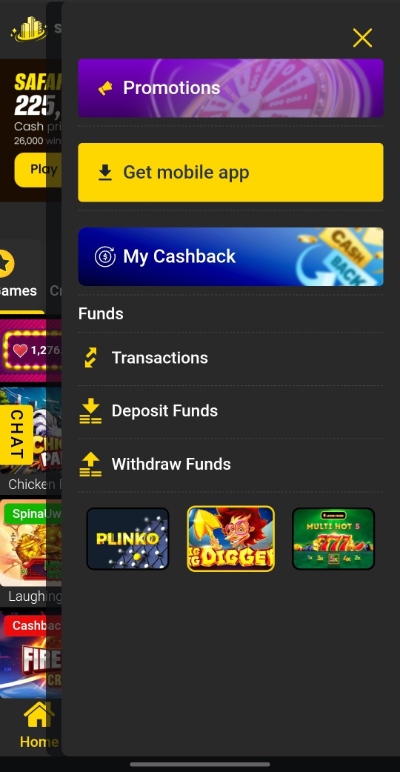
1. Get the Spin City APK
Start by visiting the official Spin City website and tap the Get the mobile app download option.
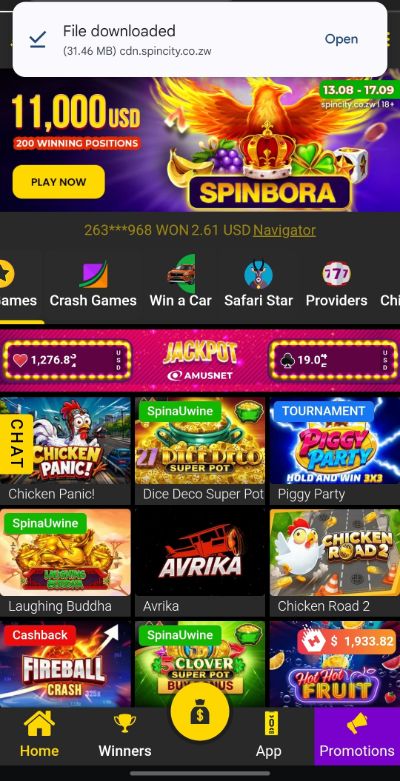
2. Download and Open the APK
Once the download process completes, open the APK from your browser or Downloads folder. Android may ask you to approve the installation before continuing.
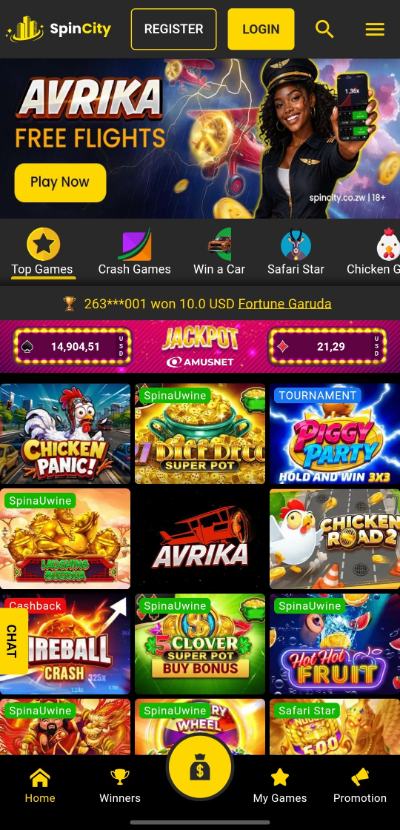
3. Install and Open Spin City
Complete the Android installation and open the app. You should land inside the familiar Spin City interface.
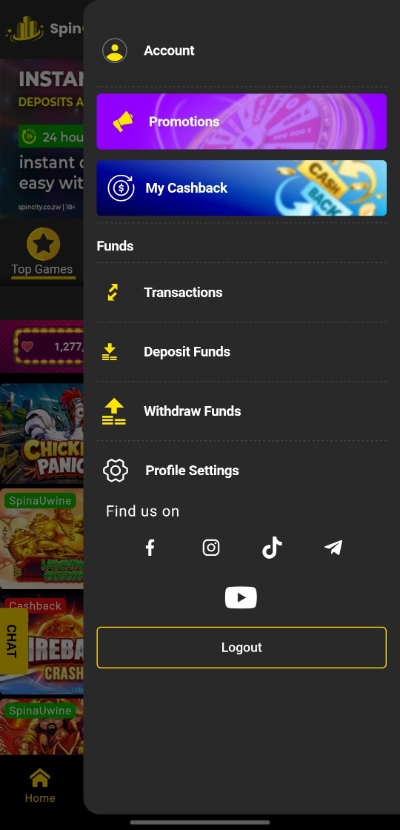
4. Log in and Start Exploring
Sign in to your Spin City account, and you’re ready to go. From here, you can move between the casino, promotions, and your account options.
App Not Installing? Try This
We hit a couple of Android hurdles during installation, so these are the ones actually worth watching for.
Chrome Needs Permission
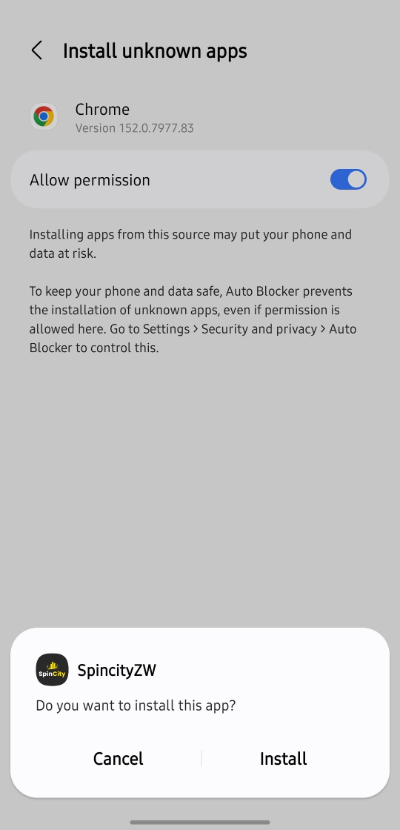
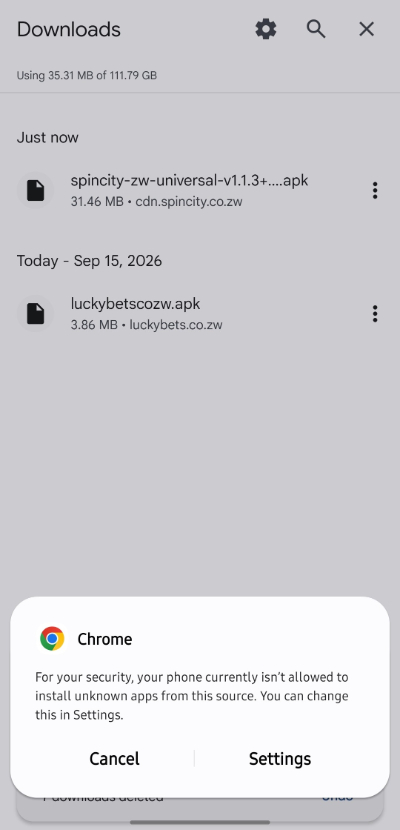
If you download the Spin City APK through Chrome, Android may stop the installation because Chrome cannot install unknown apps by default. Open the prompt, allow installation from Chrome, then return to the APK.
Android Blocks the Installation
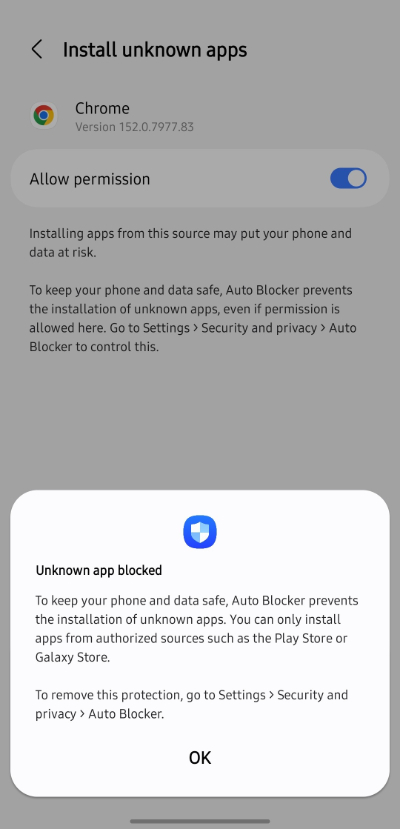
Android may also throw up a security warning before installing an APK from outside Google Play. Check that the file comes from Spin City, then follow your phone’s security prompt to continue.
Don’t Ignore the update Prompt
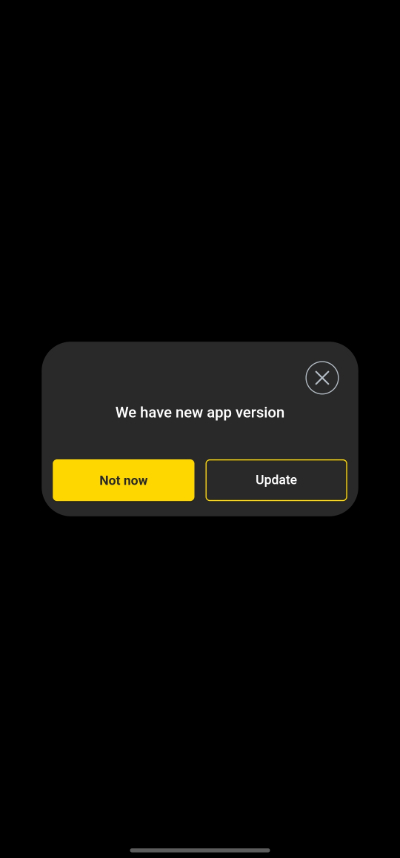
Spin City can show a pop-up when an app update is available. Install it rather than repeatedly dismissing it. An older APK may eventually run into compatibility, loading, or feature issues as Spin City updates its platform.
Using the Spin City App
Once you’re through the download and installation, the more important question is whether the whole process was necessary, or if the mobile site was equally capable. We spent some time clicking around to see how easily you can find games, claim promotions, get help, and manage your account.
Finding Your Way Around
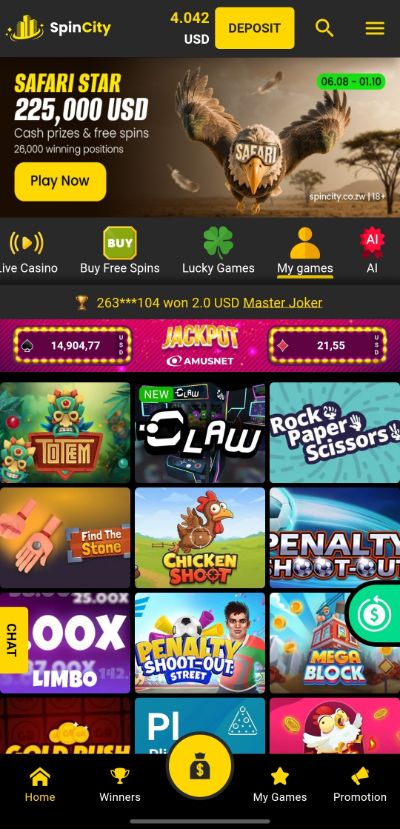
The home screen keeps the main options along the bottom, including Home, Winners, My Games, and Promotion. There’s also a search button at the top, which saves you from scrolling through the casino catalogue when you already know what you want.
Checking Your Promotions
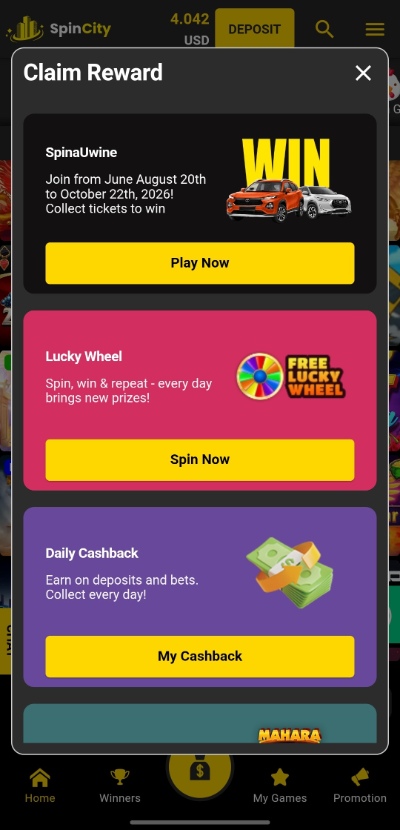
The Promotion section is one of the more useful parts of the app. Open it, and you get individual cards for available offers, with buttons taking you straight to the relevant feature. During our check, these include the Lucky Wheel and Daily Cashback.
Getting Help in the App
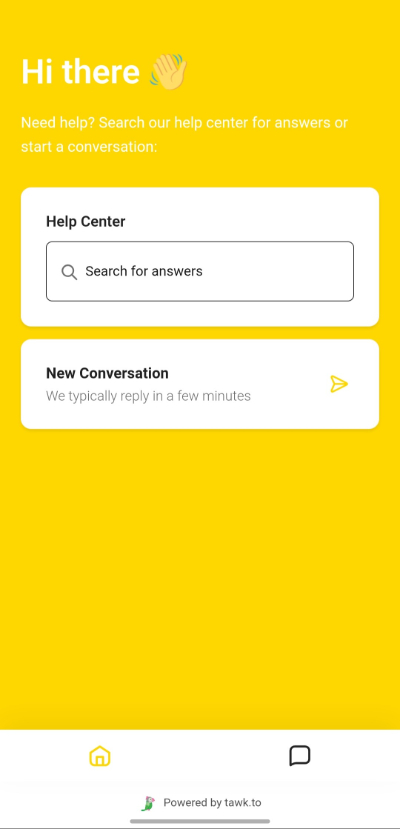
Need a hand? Spin City opens a dedicated support screen where you can search the Help Center or start a new conversation. That means you don’t have to leave the mobile experience and hunt around the main website for support.
Managing Your Account
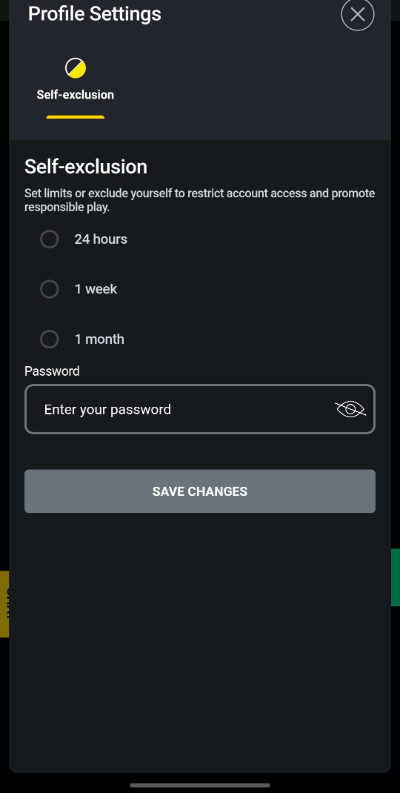
Profile settings include responsible gambling controls such as 24-hour, one-week, and one-month self-exclusion. Changes require your password, which adds a useful confirmation step.
Deposits and Withdrawals
You can easily handle payments within the Spin City app. Tap Deposit beside your balance or open the account menu, where deposits and withdrawals have their own shortcuts.
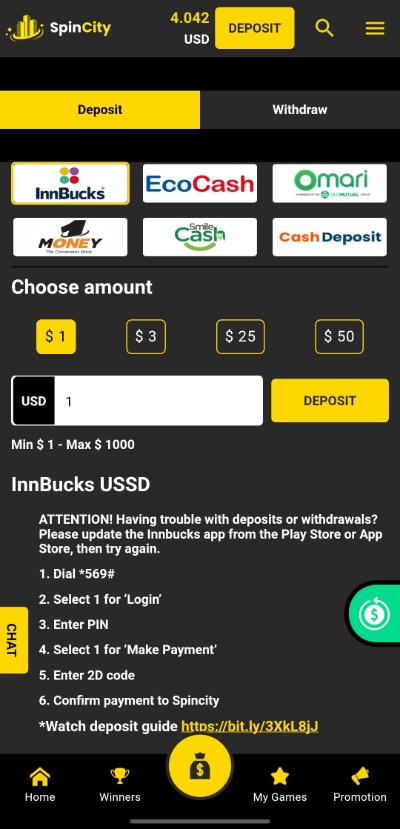
For deposits, you can choose EcoCash, InnBucks, O’Mari, OneMoney, Smile Cash, or cash deposit. EcoCash starts from $1, and you enter your mobile number and amount directly in the app. Our Spin City EcoCash deposit guide covers the payment method in more detail.
Withdrawals are just as easy to find, but you can’t receive payments to your EcoCash wallet. You can choose between InnBucks and O’Mari. It’s also possible to check your transaction history inside the app, including successful and rejected payments.
199 KB App, Big Game Selection
Spin City barely takes up any room on your phone, but you’re not getting a stripped-down version of the casino. Aviator, crash games, slots, and promotions are all right there, and you can sort out deposits or withdrawals without bouncing back to Chrome.
But even then, you need to be familiar with Android’s security checks before installing the APK. You also need to install updates as soon as they come up. Past that, there’s a lot to love. If online casino games like Aviator are your thing, downloading the app just makes sense.
Spin City App FAQs
⚡ How big is the Spin City app?
The version we tested takes up just 199 KB for the app itself, although Android also records a small amount of user data and cache as you use it.
🎰 Why does Spin City ask me to update the app?
Spin City can display an update prompt when a newer version becomes available. We recommend updating so you have the latest fixes, features and compatibility changes.
💰 Can I deposit with EcoCash in the Spin City app?
Yes. EcoCash deposits are available directly inside the app and start from $1. EcoCash is also available as a withdrawal option.